Typography Tips for Professional Business Documents
When a client opens your proposal, they judge it before they read a single word. If the font is hard to read, the spacing is cramped, or the hierarchy is confusing, they subconsciously perceive your business as messy or unprofessional.
Typography is the voice of your document. In automated generation, where you don’t have a designer tweaking every page, setting up robust typographic rules is essential.
Here are the key principles for creating documents that look authoritative and are easy to read.
1. Serif vs. Sans-Serif
- Serif (e.g., Times New Roman, Garamond): Traditional, formal, trustworthy. Best for long-form legal contracts, books, and formal letters.
- Sans-Serif (e.g., Arial, Helvetica, Roboto): Modern, clean, approachable. Best for invoices, reports, dashboards, and marketing materials.
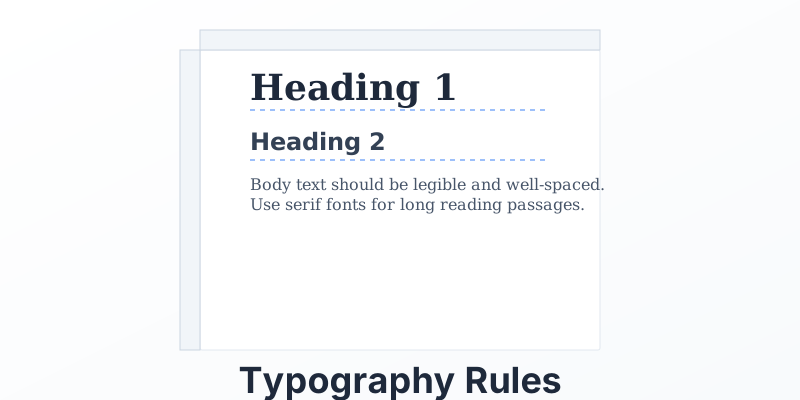
Pro Tip: Don’t use more than two font families. Pick one for headings (e.g., a bold Sans-Serif) and one for body text (e.g., a readable Serif).
2. Hierarchy is King
The reader should know instantly what is a section title, what is a subtitle, and what is body text.
- Size: Make H1s significantly larger (e.g., 24pt) than body text (10-12pt).
- Weight: Use Bold for headings to create contrast.
- Color: Use a dark grey (not pure black) for body text to reduce eye strain. Use your brand color for headings to guide the eye.
3. Line Length and Spacing (Leading)
- Line Length: Lines that are too long are hard to track. Aim for 45-75 characters per line. If your page is wide, use columns.
- Line Height (Leading): Tight text looks cramped. Set your line-height to 1.4x or 1.5x the font size. (e.g., 12pt font needs 18pt leading).
- Paragraph Spacing: Add space after paragraphs to separate thoughts. Don’t rely on indentation alone.
4. Alignment
- Left Align: Always left-align body text. It is the easiest to read.
- Justified: Avoid “Justified” alignment (where text stretches to both edges) in automated documents. It creates ugly “rivers” of white space unless you have a sophisticated hyphenation engine.
- Center: Use center alignment only for titles or short captions. Never for paragraphs.
5. Font Embedding
In PDF generation, always embed your fonts. If you use a beautiful custom font like “Proxima Nova” but don’t embed it, the user’s computer will substitute it with “Arial” or “Times,” destroying your carefully crafted layout.
Conclusion
Good typography is invisible. It allows the content to shine without distraction. By setting these rules in your CSS or template styles, you ensure that every automated document maintains a high standard of design.
Look sharp automatically. MergeCanvas supports full CSS styling and custom font embedding, giving you total control over your document’s typography.