How to Use Conditional Logic (IF Statements) in Mail Merge
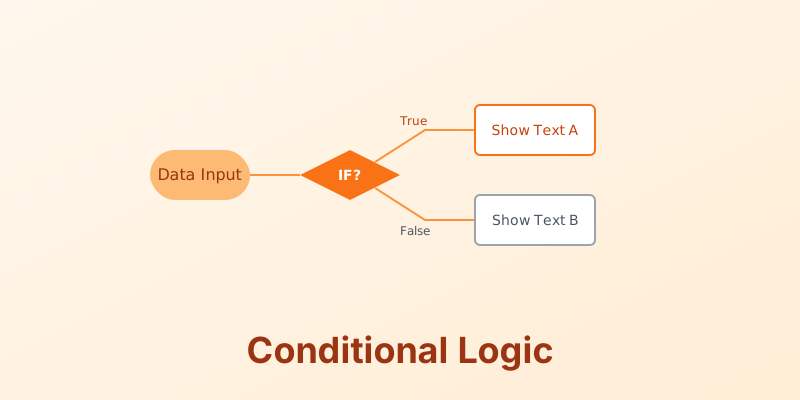
A static template is boring. A smart template adapts to the user. Conditional logic allows your document to change its text based on the data in your spreadsheet.
1. The Basic IF Statement
The syntax usually looks like this:
{ IF «State» = "CA" "Here is your California Tax Form" "Here is your Federal Form" }
- Scenario: You have customers in the US and Canada.
- Logic: If Country is “USA”, show “Zip Code”. If Country is “Canada”, show “Postal Code”.
2. Handling Gender and Plurals
- Pronouns:
{ IF «Gender» = "M" "he" "she" }. (Note: Modern systems support singular “they” or custom pronouns fields). - Plurals:
{ IF «Count» > 1 "items" "item" }. “You have 1 item” vs “You have 5 items”.
3. Hiding Empty Fields
Nothing looks worse than a blank line in an address block.
- Logic:
{ IF «Address2» <> "" "«Address2»" "" } - This checks if Address Line 2 is not empty. If it has data, print it. If not, print nothing (and suppress the line break).
Conclusion
Conditional logic turns a simple form letter into a dynamic, intelligent document that reads naturally.
Logic without code. MergeCanvas supports complex logic, loops, and partials to handle the most demanding document requirements.