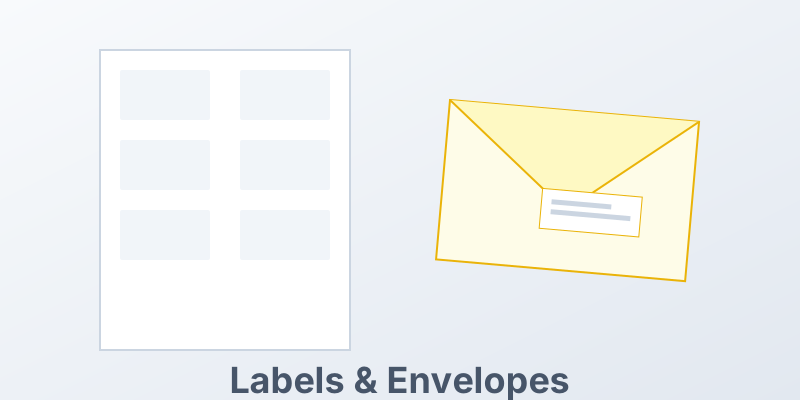
How to Mail Merge Labels, Envelopes, and Name Tags in Word
Printing labels is the classic “I hate computers” moment. The alignment is always off. The text gets cut off. But if you master the Label Merge, you become the office hero.
1. Select Your Label Vendor
Word has templates for almost every label manufacturer (Avery is the standard).
- Go to
Mailings > Start Mail Merge > Labels. - Find the code on your box (e.g., “Avery 5160”).
- Word will create a table grid that matches your sticker sheet exactly.
2. The “Update Labels” Button
This is the step everyone forgets.
- Insert your merge fields (
«Name»,«Address») into the first label (top left). - Format it perfectly.
- Click the “Update Labels” button in the ribbon.
- Word will copy that layout to every other cell in the grid. If you skip this, you get one page with one label.
3. Envelopes
Envelopes are easier but require a printer that can handle them.
- Go to
Mailings > Start Mail Merge > Envelopes. - Choose the size (Size 10 is standard business).
- Word sets the paper size. You just need to ensure you feed the envelope into the printer in the right orientation (check the icon on your printer tray!).
Conclusion
Label merging is a precise art. Measure twice, print once (on plain paper first!).
Skip the printer. MergeCanvas can generate shipping labels as PDFs that are perfectly aligned every time, ready for any thermal printer.