How to Annotate a PDF
The “red pen” has gone digital. Whether you are editing a manuscript, reviewing a design proof, or grading a student paper, annotating a PDF is the standard way to provide feedback.
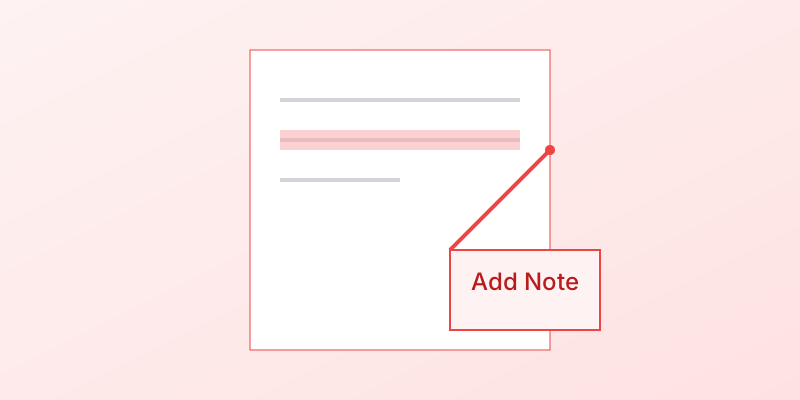
Annotations live on a layer above the document content. They don’t change the original text, making them perfect for non-destructive collaboration.
Common Annotation Tools
- Sticky Note: A small icon that expands into a text box. Best for general comments.
- Highlight: Yellow (or any color) overlay on text. Best for emphasizing key points.
- Strikethrough: Red line through text. Indicates “delete this.”
- Underline: Green or blue line. Indicates “check this” or “insert here.”
- Text Box: Type text directly on the page. Good for filling out non-interactive forms.
- Drawing Tool: Freehand pencil. Good for circling errors or drawing arrows.
How to Annotate in Adobe Acrobat Reader (Free)
- Open the PDF.
- Click the Comment tool in the right pane.
- Select a tool from the toolbar (e.g., Highlighter).
- Select the text or click on the page.
- Type your comment in the sidebar.
How to Annotate in Preview (Mac)
- Open the PDF.
- Click the Markup Toolbar icon (pen tip).
- Choose your tool (Shapes, Text, Signature, Sketch).
- Annotations are saved automatically.
Best Practices for Collaboration
- Use Colors: Assign a different color to each reviewer so you know who said what.
- Reply to Comments: You can reply to a sticky note to start a thread, keeping the conversation contextually attached to the text.
- Checkboxes: In Acrobat, you can check off comments as you resolve them to keep track of your progress.
Conclusion
Mastering annotation tools speeds up the review cycle and prevents miscommunication. It turns a static document into a collaborative workspace.
Ready to streamline document reviews? Discover how MergeCanvas can help you manage document workflows. Start your free trial today.