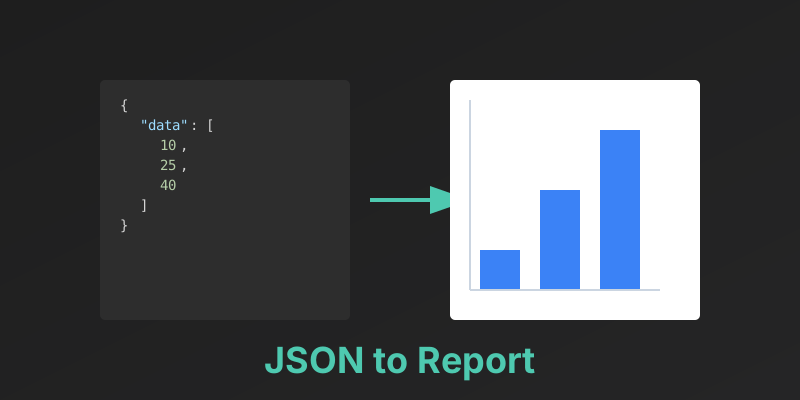
How to Generate Custom Reports with JSON Data
In the modern web stack, data lives as JSON (JavaScript Object Notation). Your database returns JSON. Your API returns JSON. But your boss? Your boss wants a PDF.
Bridging the gap between a JSON object and a polished, printable report is a common developer task. Whether it is a weekly sales summary, a user activity log, or a financial statement, the principles are the same.
This guide covers the technical steps to transform structured data into human-readable documents.
1. The Data Structure
Let’s assume you have a JSON object representing a sales report:
{
  "reportDate": "2025-12-28",
  "author": "Jane Doe",
  "sales": [
    { "item": "Widget A", "amount": 50, "price": 10.00 },
    { "item": "Widget B", "amount": 20, "price": 15.00 }
  ],
  "totalRevenue": 800.00
}
Your goal is to render this into a PDF with a header, a table for the sales items, and a footer with the total.
2. The Template Approach
Hard-coding PDF generation (e.g., doc.text(10, 10, "Report")) is tedious and brittle. The better approach is to use a Template Engine.
Common engines include Handlebars, Mustache, or specialized PDF templating languages. You create a layout that looks like HTML:
<h1>Sales Report: {{reportDate}}</h1>
<table>
  <thead>
    <tr><th>Item</th><th>Amount</th><th>Price</th></tr>
  </thead>
  <tbody>
    {{#each sales}}
    <tr>
      <td>{{this.item}}</td>
      <td>{{this.amount}}</td>
      <td>{{this.price}}</td>
    </tr>
    {{/each}}
  </tbody>
</table>
<h3>Total: {{totalRevenue}}</h3>
3. Rendering the PDF
Once you have the Template and the Data, you need a Renderer.
- Client-Side: Libraries like
jspdfcan render in the browser, but they struggle with complex layouts and large datasets. - Server-Side (Headless Chrome): Tools like Puppeteer launch a hidden browser, render your HTML/CSS, and “print” it to PDF. This offers the best styling support but is resource-intensive.
- API Services: Dedicated APIs (like MergeCanvas) accept your JSON and Template, handle the rendering on optimized infrastructure, and return the PDF stream.
4. Handling Dynamic Content
Reports are rarely static. You need to handle:
- Pagination: If the sales list has 500 items, it needs to span multiple pages. You need headers to repeat on each page.
- Charts: You can use libraries like Chart.js to render graphs into
<canvas>elements, which are then captured in the PDF. - Conditional Formatting: “If revenue < 0, make the text red.” This logic should live in your template or data preparation layer.
5. Optimization Tips
- Pre-calculate Totals: Don’t make the template engine do math. Calculate totals and averages in your code before sending the JSON to the renderer.
- Optimize Images: If your report includes logos or photos, compress them. Large images bloat the final PDF size.
- Cache Templates: If you are generating thousands of reports, don’t re-compile the template every time. Compile it once and reuse it.
Conclusion
Generating reports from JSON is a fundamental skill for backend developers. By separating your data logic from your presentation logic (via templates), you create a system that is easy to maintain and update.
Skip the boilerplate. MergeCanvas provides a powerful JSON-to-PDF API that handles pagination, charts, and styling out of the box.