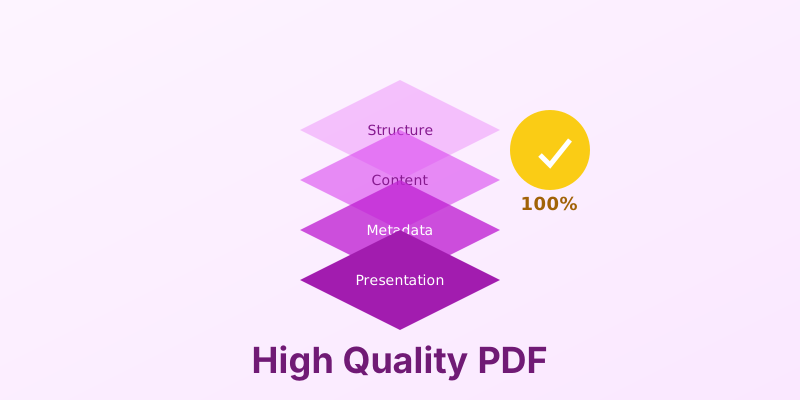
The Complete Guide to Creating High-Quality PDFs
We have all seen them: PDFs with blurry images, pixelated text, or strange characters that look like gibberish. Or perhaps a file that looks great on screen but prints with washed-out colors. These are the hallmarks of a low-quality PDF.
Creating a high-quality PDF is an art that balances visual fidelity, file size, and functionality. Whether you are a graphic designer sending a brochure to print, a business professional sharing a report, or a developer generating invoices, the quality of your PDF reflects the quality of your work.
In this comprehensive guide, we will walk you through the essential elements of creating professional-grade PDFs. We will cover everything from resolution and fonts to color management and accessibility, ensuring your documents look perfect on any device and in any medium.
1. Start with the Right Source Material
The golden rule of digital output is “Garbage In, Garbage Out.” You cannot create a high-quality PDF from low-quality source files.
- Use Vector Graphics: Whenever possible, use vector formats (SVG, AI, EPS) for logos, icons, and illustrations. Vectors are resolution-independent, meaning they will remain crisp and sharp whether viewed on a phone or printed on a billboard.
- High-Resolution Images: If you must use raster images (JPEG, PNG), ensure they have sufficient resolution. For print, aim for 300 DPI (dots per inch) at the final display size. For screen-only documents, 72 or 96 DPI is standard, but 150 DPI is recommended for modern high-density (Retina) displays.
2. Master Font Embedding
One of the most common PDF issues is missing fonts. If you use a specific font that the viewer doesn’t have installed, their computer will substitute it with a default font (like Arial or Times New Roman), potentially ruining your layout.
- Embed All Fonts: Always configure your PDF generator to embed fonts. This saves a copy of the font characters inside the PDF file itself.
- Subsetting: To keep file size down, use subsetting. This only embeds the specific characters used in the document, rather than the entire font file. This is especially important for large fonts like Arial Unicode or CJK fonts.
3. Color Management: RGB vs. CMYK
The intended destination of your PDF dictates the color space you should use.
- For Screens (Web/Email): Use RGB (Red, Green, Blue). This is how monitors display color. It offers a wider gamut of bright, vibrant colors.
- For Professional Print: Use CMYK (Cyan, Magenta, Yellow, Key/Black). Printers use ink, not light. Converting your document to CMYK before creating the PDF ensures that the colors you see on screen will match (as closely as possible) the final printed product.
- ICC Profiles: For color-critical work, embed the correct ICC profile (e.g., sRGB for web, Coated FOGRA39 for print) to tell the output device exactly how to interpret the color values.
4. Image Compression Settings
Balancing image quality with file size is a trade-off.
- Lossless Compression (ZIP/LZW): Use this for text, line art, and screenshots. It preserves every pixel perfectly but doesn’t compress photographs well.
- Lossy Compression (JPEG): Use this for photographs. You can usually set the quality level. A setting of “High” or “Maximum” (quality 80-90) is usually indistinguishable from the original to the human eye but significantly reduces file size. Avoid heavy compression (quality < 50) which introduces visible artifacts.
5. Accessibility and Tagging (PDF/UA)
A high-quality PDF is an accessible PDF. This means it can be read by screen readers used by people with visual impairments.
- Document Structure: Use proper headings (H1, H2, etc.) in your source document.
- Alt Text: Add alternative text descriptions to all images.
- Tags: Ensure your PDF generation tool creates a Tagged PDF. Tags provide the hidden structure that tells assistive technology the reading order and the difference between a paragraph, a list, and a table.
6. Metadata and Document Properties
Professional documents should have complete metadata. This information is used by search engines, document management systems, and operating systems.
- Title: Set a descriptive document title (this is often displayed in the window title bar instead of the filename).
- Author: Identify the creator or organization.
- Keywords: Add relevant tags to help with searchability.
- Language: Specify the document language (e.g., English US) so screen readers know which pronunciation rules to apply.
7. Navigation and User Experience
For documents longer than a few pages, navigation is key to a high-quality user experience.
- Bookmarks: Generate a bookmark tree (table of contents) based on your heading structure. This allows users to jump to specific sections instantly.
- Hyperlinks: Ensure all URLs and email addresses are active, clickable links.
- Initial View: You can set the “Initial View” properties to determine how the PDF opens (e.g., “Page Width” vs. “Fit Page”, or showing the Bookmarks panel by default).
8. Best Practices for PDF Creation
To consistently produce high-quality results:
- Avoid “Print to PDF”: Whenever possible, use “Export” or “Save As PDF” functions in your software. “Printing” to PDF often flattens transparency and strips out tags and bookmarks.
- Check Your Bleeds: If sending to a professional printer, ensure your document has bleed (content extending beyond the trim edge) and crop marks.
- Preflight: Use a “Preflight” tool (available in professional PDF editors) to check for errors like low-resolution images or non-embedded fonts before finalizing.
Conclusion
Creating a high-quality PDF is about more than just hitting “Save.” It requires attention to detail regarding resolution, color, fonts, and structure. By following these guidelines, you ensure that your documents are not only visually stunning but also functional, accessible, and professional.
Want to generate high-quality PDFs programmatically? MergeCanvas offers a robust API for creating pixel-perfect, optimized PDFs for your business applications. Start building better documents today.